You have probably already seen how to use DrawThemeTextEx on Vista and above to draw text with a white blurry 'glow' effect behind it. It's commonly used when drawing on glass, to ensure that text has enough background contrast to be easily readable. But the API only draws a white glow. What if you want another color?
I asked a question on Stack Overflow to see if it was possible to change the background glow colour - after all, the text colour and glow size are both options in the DTTOPTS structure; perhaps there was a way to make the border or shadow options affect the glow. But no-one answered, and from my own research / experiments it appears it's not possible through the API.
Instead, I've coded a method to do this into my TTransparentCanvas open-source library.
If you haven't seen the previous blog posts about it, TTransparentCanvas is a class (or set of classes) to draw transparent, blended shapes and text onto a bitmap or device context using TCanvas-like functions and normal VCL objects like TPen, TBrush, TFont etc. Shapes and text can be composed and blended over each other, and the final result then blended over an existing image. The code aims to be easy to pick up and use if you are familiar with drawing with TCanvas, and is implemented with pure GDI - that is, no GDI+ or other external libraries are required.
TTransparentCanvas draws every shape or text onto an intermediate bitmap. This allows processing of the alpha of that shape before the result is blended onto the 'result' bitmap. This design allows every item drawn to have different transparencies, but also allows other intermediate processing before the drawn item is composed onto the final alpha-aware bitmap result.
It's this intermediate step we can take advantage of. If there's no way to change the background colour in the API, we can do it, effectively, as a post-processing stage by tinting the glowing pixels.
What about the text? If drawn as black text, they will have full-alpha but black pixels, e.g. ABGR (255, 0, 0, 0.) However, text is anti-aliased: most parts of the text will not be fully black, but a colour between black and white, and it's not even guaranteed the text pixels will have full alpha.
A simpler solution is to tint all pixels, both glow and text, to the one colour, and then draw the text over again. Visually, this gives almost the same result with less per-pixel processing - a win.
(Note: the following quotes heavily from my Stack Overflow answer explaining the same material.)
To tint, one can ignore the existing colour of the pixel and instead set any non-zero-alpha pixels to a premultiplied alpha value using the user-specified background colour, based on the existing alpha of the pixel. Loop through your temporary bitmap and set the colour using the existing alpha as an intensity:
The key is PQuad.SetFromColorMultAlpha:
This takes a quad colour (that is, alpha with RGB) and multiplies the two alphas together to get a resulting alpha. This lets you tint by a transparent colour to have the glow effect lessened by being partially transparent at its strongest point if you pass in a non-full-alpha color to tint with. The example application has a slider allowing you to see this in action.
SetAlpha is an existing method that converts to premultiplied alpha:
This image is the text 'Test glowing text with background color' tinted clLime:
But why stop there? Naturally, the next step is to experiment with custom-drawn title bars. The source demos include a small project heavily based on Chris Rolliston's excellent code to let you draw on a Vista+ title bar. (If you want to custom-draw on a title bar, please go read his article - it's very good - rather than basing your code on my quick-and-dirty hacked-in functionality, which was written only for the purpose of demonstrating using this code with the title bar.) That gives you results like this:

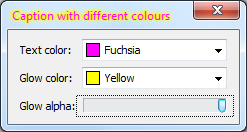

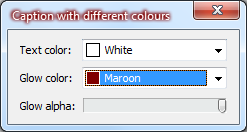
And of course, since TTransparentCanvas can draw to glass as easily as it can to a normal bitmap or DC, you can draw anything else on the title bar too.
 |
| The glow effect over a coloured background. What if you want non-white glowing background? |
Instead, I've coded a method to do this into my TTransparentCanvas open-source library.
If you haven't seen the previous blog posts about it, TTransparentCanvas is a class (or set of classes) to draw transparent, blended shapes and text onto a bitmap or device context using TCanvas-like functions and normal VCL objects like TPen, TBrush, TFont etc. Shapes and text can be composed and blended over each other, and the final result then blended over an existing image. The code aims to be easy to pick up and use if you are familiar with drawing with TCanvas, and is implemented with pure GDI - that is, no GDI+ or other external libraries are required.
How it's done
The following assumes you have read my previous articles about drawing transparent graphics with pure GDI (Part 1, Part 1½, and Part 2.) Specifically, you should know what premultiplied alpha is and be familiar with the record I use to represent a single transparent pixel, TQuadColor.A quick explanatory note if you didn't go and meticulously pore over those links - which of course you did :) - is that premultiplied alpha changes the RGB representations of a pixel from 0-255 to that value scaled, or pre-multiplied, by the alpha channel, so with an alpha of 64, a full-white (normally (255, 255, 255)) pixel will have RGB values of (64, 64, 64). A grey pixel of (128, 128, 128) with an alpha value of 64 would have premultiplied RGB values of (32, 32, 32), which still represent the same colour. It's one of the steps done when blending transparent images together, and storing bitmaps in this format saves some calculations. TQuadColor is a simple record representing a 32-bit pixel as union or variant record of four bytes in ABGR order or a 32-bit Cardinal, along with some helpful methods.
TTransparentCanvas draws every shape or text onto an intermediate bitmap. This allows processing of the alpha of that shape before the result is blended onto the 'result' bitmap. This design allows every item drawn to have different transparencies, but also allows other intermediate processing before the drawn item is composed onto the final alpha-aware bitmap result.
It's this intermediate step we can take advantage of. If there's no way to change the background colour in the API, we can do it, effectively, as a post-processing stage by tinting the glowing pixels.
Examining the bitmap
Examining the glowing pixels in the debugger shows that the white transparent pixels are represented as pure white until they are completely transparent, but are of course in premultiplied alpha form. Thus, a pixel right at the edge of the glow may have the ABGR value (2, 2, 2, 2): that is, an alpha of 2, with a full-100%-white value (normally (255, 255, 255) premultiplied by the alpha to give each channel a value of 2.What about the text? If drawn as black text, they will have full-alpha but black pixels, e.g. ABGR (255, 0, 0, 0.) However, text is anti-aliased: most parts of the text will not be fully black, but a colour between black and white, and it's not even guaranteed the text pixels will have full alpha.
Tinting these pixels
I initially considered tinting the pixels by drawing black text on the white glow, figuring out the relative "whiteness" and "blackness" of each pixel, and using that to interpolate between the user-specified glow and text colours. However, not only is this probably more processing than is required but sub-pixel antialiasing might result in non-uniformly-grey pixels.A simpler solution is to tint all pixels, both glow and text, to the one colour, and then draw the text over again. Visually, this gives almost the same result with less per-pixel processing - a win.
(Note: the following quotes heavily from my Stack Overflow answer explaining the same material.)
To tint, one can ignore the existing colour of the pixel and instead set any non-zero-alpha pixels to a premultiplied alpha value using the user-specified background colour, based on the existing alpha of the pixel. Loop through your temporary bitmap and set the colour using the existing alpha as an intensity:
// PQuad is a pointer to the first pixel, a TQuadColor (see link, basically a packed struct of ABGR bytes)
for Loop := 0 to FWidth * FHeight - 1 do begin
  if PQuad.Alpha <> 0 then begin
    PQuad.SetFromColorMultAlpha(Color); // Sets the colour, and multiplies the alphas together
  end;
  Inc(PQuad);
end;
The key is PQuad.SetFromColorMultAlpha:
procedure TQuadColor.SetFromColorMultAlpha(const Color: TQuadColor);
var
  MultAlpha : Byte;
begin
  Red := Color.Red;
  Green := Color.Green;
  Blue := Color.Blue;
  MultAlpha := Round(Integer(Alpha) * Integer(Color.Alpha) / 255.0);
  SetAlpha(MultAlpha, MultAlpha / 255.0);
end;
This takes a quad colour (that is, alpha with RGB) and multiplies the two alphas together to get a resulting alpha. This lets you tint by a transparent colour to have the glow effect lessened by being partially transparent at its strongest point if you pass in a non-full-alpha color to tint with. The example application has a slider allowing you to see this in action.
SetAlpha is an existing method that converts to premultiplied alpha:
procedure TQuadColor.SetAlpha(const Transparency: Byte; const PreMult: Single);
begin
  Alpha := Transparency;
  Blue := Trunc(Blue * PreMult);
  Green := Trunc(Green * PreMult);
  Red := Trunc(Red * PreMult);
end;
Example of the result
What does this give you?This image is the text 'Test glowing text with background color' tinted clLime:
 |
| A clLime-tinted glow |
The final step is to draw the text over the top again, this time without any glow effect, giving this result:
 |
| ...and with text drawn over the glow. |
This means you can now draw text with any font color and any glow color:
 |
| clRed text with a clSkyBlue glow |
But why stop there? Naturally, the next step is to experiment with custom-drawn title bars. The source demos include a small project heavily based on Chris Rolliston's excellent code to let you draw on a Vista+ title bar. (If you want to custom-draw on a title bar, please go read his article - it's very good - rather than basing your code on my quick-and-dirty hacked-in functionality, which was written only for the purpose of demonstrating using this code with the title bar.) That gives you results like this:
And of course, since TTransparentCanvas can draw to glass as easily as it can to a normal bitmap or DC, you can draw anything else on the title bar too.

